Temporary JupyterHub
While using JupyterLab is not an efficient method (and certainly not something you want to use while training your model at scale), this is what we will use for the first part of this course so that we can visualize images easily.
This section explains how to log in to our temporary JupyterHub.
Jupyter on clusters
To use JupyterLab on a cluster, you use what is called a JupyterHub: a set of tools that spawn and manage multiple instances of JupyterLab servers. Under the hood, they manage an interactive job used by your JupyterLab server.
Let’s try it on our training cluster.
Launch JupyterLab
Claim a username
Go to the etherpad that we will share during the course and claim a username by adding your first name or a pseudo next to a free username on the list.
Your username is the name that was already on the list, NOT what you wrote next to it (which doesn’t matter at all and only serves to signal that this username is now taken).
Your username will look like userxx or userxxx —xx and xxx being 2 or 3 digits respectively—with no space and no capital letter.
Log in
- go to the URL we will give you during the course,
- sign in with your new username and a password that we will give you during the course,
- leave OTP blank,
- log in.
Launch a job
This will take you to server options page:
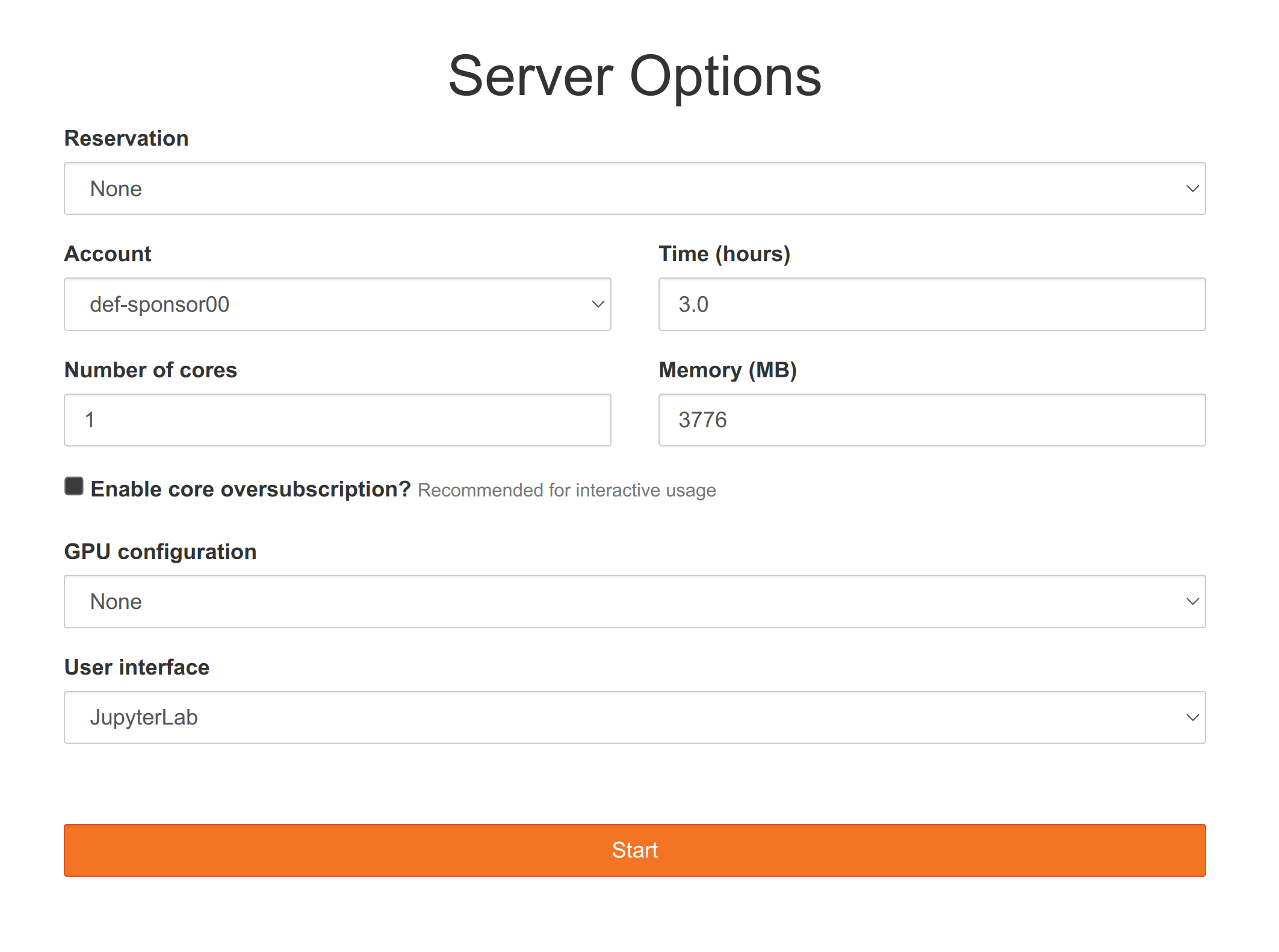
- Change the time to a suitable value,
- press start.
Note that, unlike other JupyterHubs you might have used (e.g. Syzygy), this JupyterHub is not permanent and will be destroyed at the end of the course.
End a session
If you don’t need all the time you asked for after all, it is a great thing to log out (the resources you are using on this cluster are shared amongst many people and when resources are allocated to you, they aren’t available to other people. So it is a good thing not to ask for unnecessary resources and have them sit idle when others could be using them).
To log out, click on File in the top menu and select Log out at the very bottom.
If you would like to make a change to the information you entered on the server option page after you have pressed start, log out, log back in, edit the server options, and press start again.
Start a Python notebook
To start a Jupyter notebook with the Python kernel, click on the button Python 3 in the Notebook section (top row of buttons).
The Jupyter interface
In a fashion Vi users will be familiar with, Jupyter notebooks come with two modes: edit mode in which you can type text as usual and command mode in which many keys are shortcuts to specific actions.
Here are some useful key bindings to navigate a Jupyter notebook:
Enter            enter edit mode
Esc              enter command mode

# in edit mode
Tab              code completion

# in command mode
up               navigate up
down             navigate down
Shift+up         select multiple cells up
Shift+down       select multiple cells down
a                insert a new blank cell above
b                insert a new blank cell below
c                copy the current or selected cells
x                cut the current or selected cells
v                paste the copied or cut cells
dd               delete cell
m                turn the cell into a markdown cell
y                turn the cell into a code cell
Shift+m          merge selected cells

# in either mode
Ctl+Enter        run the current cell
Shift+Enter      run the current cell and move to a new cell below