Our workflow for this course
For this course, we will use JupyterLab on a training cluster via JupyterHub—a set of tools that spawn and manage multiple instances of JupyterLab servers.
Note that, unlike other JupyterHubs you might have used (e.g. Syzygy), this JupyterHub is not permanent and will be destroyed at the end of this course.
Get the info
During the course, we will give you 3 pieces of information:
- a link to a list of usernames,
- the URL of the JupyterHub for this course,
- the password to access that JupyterHub.
You need to claim a username by adding your first name or a pseudo next to a free username on the list to claim it.
Your username is the name that was already on the list, NOT what you wrote next to it (which doesn’t matter at all and only serves at signalling that this username is now taken).
Your username will look like userxx—xx being 2 digits—with no space and no capital letter.
JupyterHub
Log in
Open the JupyterHub URL we gave you in your browser, then use the username you claimed and the password we gave you to log in.
Server options
- Change the time to 3 h.
- Change the memory to 3500 MB.
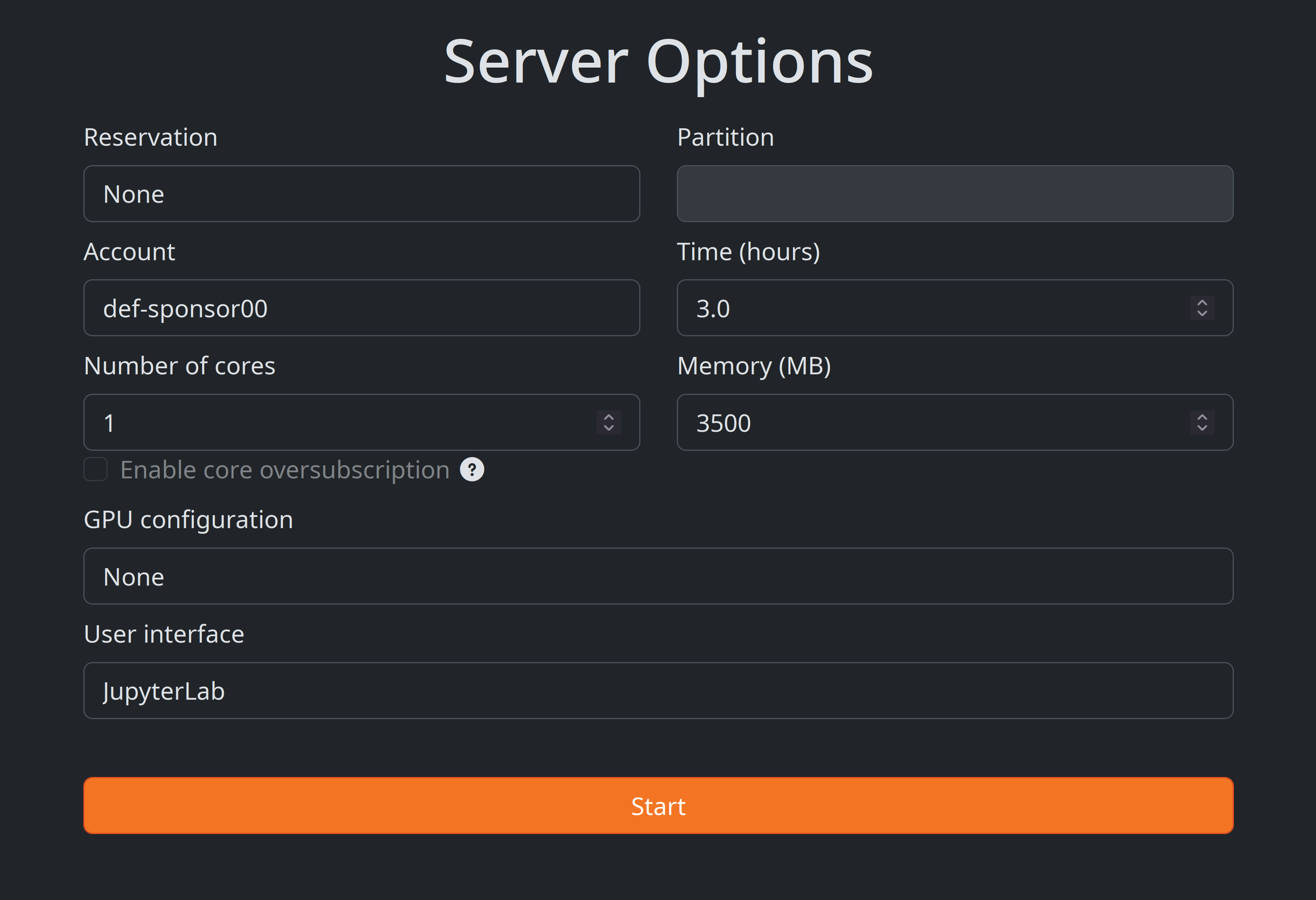
If you would like to make a change to the information you entered on the server option page after you have pressed start, log out (click on File in the top menu and select Log out at the very bottom), log back in, edit the server options, and press start again.
Start a Python notebook
To start a Jupyter notebook with the Python kernel, click on the button Python 3 in the Notebook section (top row of buttons).
Log out
When you are done with a session in the JupyterHub, please log out. This releases the resources and makes them available to other people so it is a great habit to develop. It also prevents you from burning through your allocation unnecessarily.
To log out, click on File in the top menu and select Log out at the very bottom.
The Jupyter interface
In a fashion Vi users will be familiar with, Jupyter notebooks come with two modes: edit mode in which you can type text as usual and command mode in which many keys are shortcuts to specific actions.
Here are some useful key bindings to navigate a Jupyter notebook:
Enter            enter edit mode
Esc              enter command mode

# in edit mode
Tab              code completion

# in command mode
up               navigate up
down             navigate up
Shift+up         select multiple cells up
Shift+down       select multiple cells down
a                insert a new blank cell above
b                insert a new blank cell below
c                copy the current or selected cells
x                cut the current or selected cells
v                paste the copied or cut cells
dd               delete cell
m                turn the cell into a markdown cell
y                turn the cell into a code cell
Shift+m          merge selected cells

# in either mode
Ctl+Enter        run the current cell
Shift+Enter      run the current cell and move to a new cell below